
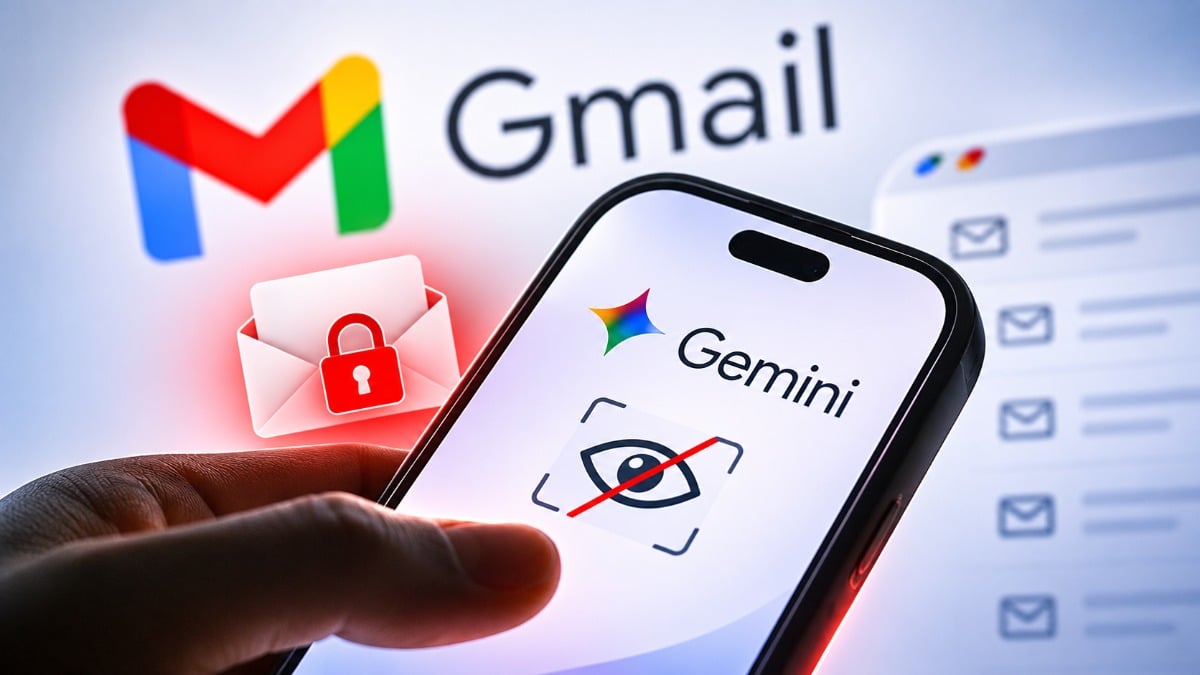
How to Stop Gemini From Spying Into Your Emails
Source: propakistani.pk
Google’s Gemini AI can read and analyze Gmail messages to summarize emails, draft replies, find information, and help manage the inbox, but the features have raised privacy concerns for users who do not want an AI assistant processing personal conversations, financial details, work emails, or other sensitive information, and several smart features in Gmail may be enabled automatically depending on the account and location. Gemini-related features in Gmail can be turned off by changing a few settings on a computer or smartphone. On a computer, users open Gmail, click the Settings icon in the top-right corner, select See all settings, scroll to Smart features under the General tab, uncheck Turn on smart features in Gmail, Chat, and Meet, and confirm the change if prompted; they should also open Google Workspace smart features, click Manage Workspace smart feature settings, turn off Smart features in Google Workspace and Smart features in other Google products, and click Save. On Android and iPhone, users open the Gmail app, tap the three horizontal lines in the top-left corner, select Settings, choose the Gmail account, find the Smart features option, turn off Smart features in Gmail, Chat, and Meet, open Google Workspace smart features, and disable Smart features in Google Workspace and Smart features in other Google products. Google says these settings apply across devices where the same account is signed in. To limit Gemini’s access to connected Google apps such as Gmail, Drive, Calendar, and
SUCKS 0
0
0
Comments
This page shows all existing comments. To add a new comment, open the post in the forum.
No comments yet.